How to Create a Viral Instagram Reel Using Only Your Phone (CapCut Step-by-Step Guide)
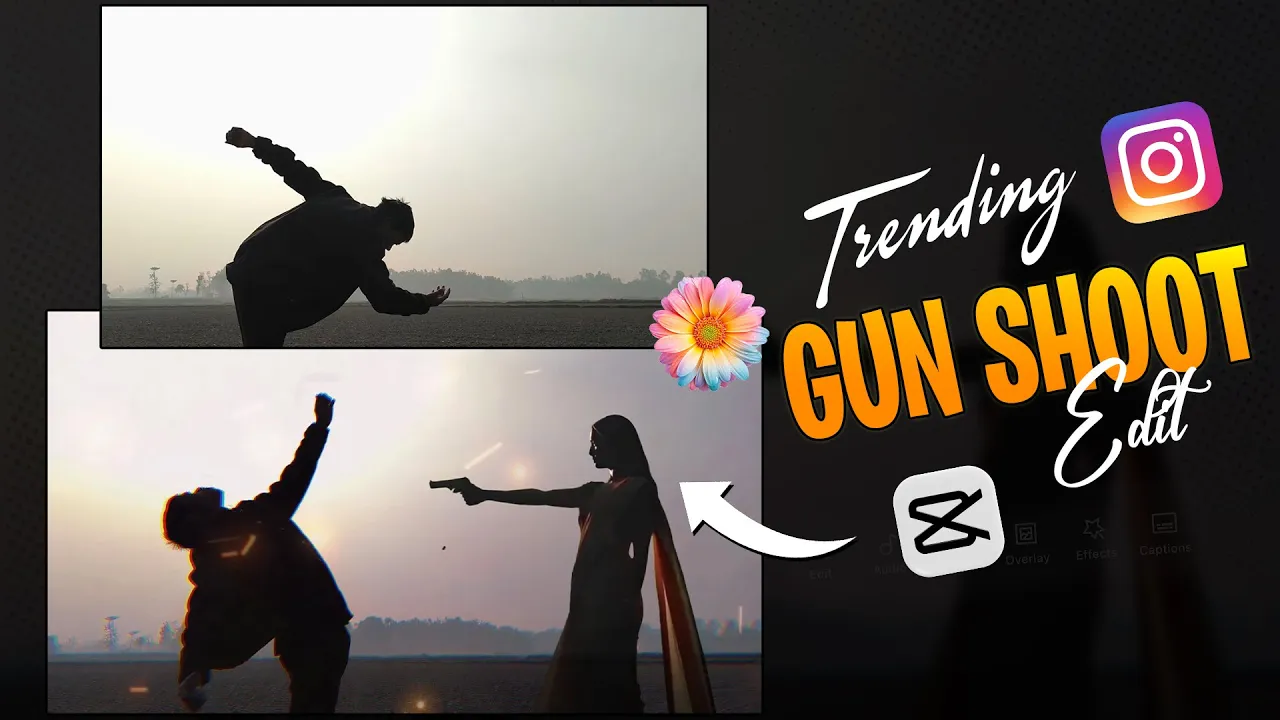
First of all, take a look at this trend. Right now, videos like this are going extremely viral on Instagram.
And guys, the best part is—making this type of video is super easy. You can create it using just your phone.
In today’s guide, I’ll show you exactly how to record and edit this viral video step by step on your smartphone.
So make sure you read this article till the end without skipping anything. If you like this tutorial, don’t forget
to like and support the channel. Now, without wasting any time, let’s get started.
Step 1: Record Your Video Clip
First, you need to record a clip in a similar style. Just use your phone camera and record a simple clip with a small
backward action or movement. Once the video is recorded, we’ll move to editing.
Step 2: Import Video into CapCut
After recording the video, open the CapCut app and import your clip. I’ve already imported mine.
If you don’t have CapCut installed, you can download it from the official website:
CapCut Official Website.
Step 3: Adjust Speed Using Curve Option
After importing the video, go to the Speed section and tap on Curve.
Create a curve graph where most of the clip stays normal or fast, but at the exact moment where you move backward,
add a slow-motion effect.
Play the video to preview how the slow-motion looks. Your clip should look smooth and dramatic at this point.
Step 4: Add Video Effects
Now go to the Effects section and tap on Video Effects.
Right at the top, you’ll find an effect called God Rays. Select it and apply it to your clip.
Go into the adjustment settings and set the filter value around 15–20.
Reduce the glow slightly so it doesn’t look too harsh.
Step 5: Add Music to Match the Beat
Now let’s add music. Go to the Overlay section and add the music.
The music link is usually provided in the video description—download it from there.
After adding the music, carefully listen to identify where the beat drops.
Timing is very important here because the visual effects must sync perfectly with the beat.
Step 6: Add Green Screen Overlay Clip
Next, add the overlay video (green screen clip). You can download this clip from the description as well.
Once added, rotate it according to your main clip and position it properly.
To remove the green screen, go to Chroma Key, select the green color, and adjust the intensity
until the background is completely removed. Resize and place the overlay clip carefully.
Make sure the overlay clip perfectly matches the beat of the music—especially the hit or impact moment.
Step 7: Apply Dream Effect
Go back to the Effects section and select the Dream effect.
Apply it for the same duration as your green screen overlay clip.
Click on the effect layer, go to Object, and apply it to All Videos.
Do the same for the previous effect layer as well.
Step 8: Add Flash Effect
Again, open the Effects section and search for Flash.
Apply the flash effect, then trim it and place it exactly at the beat drop.
This gives your video a powerful impact.
Step 9: Apply Animation to Main Clip
Now select your main video clip. Go to Animations and choose the
Cross Open animation. Apply it to your clip to enhance the overall look.
Step 10: Export Your Video
Your video is now complete. Play it once to check everything.
If everything looks good, tap on the Export option and save your video.
Generate
Final Thoughts
Guys, creating this viral Instagram reel is actually very easy if you follow each step properly till the end.
You can make this entire video using just your phone. If you face any problems, feel free to ask in the comments.
That’s all for today’s guide. We’ll meet again in the next tutorial.
Bye, take care!
Helpful Resources: