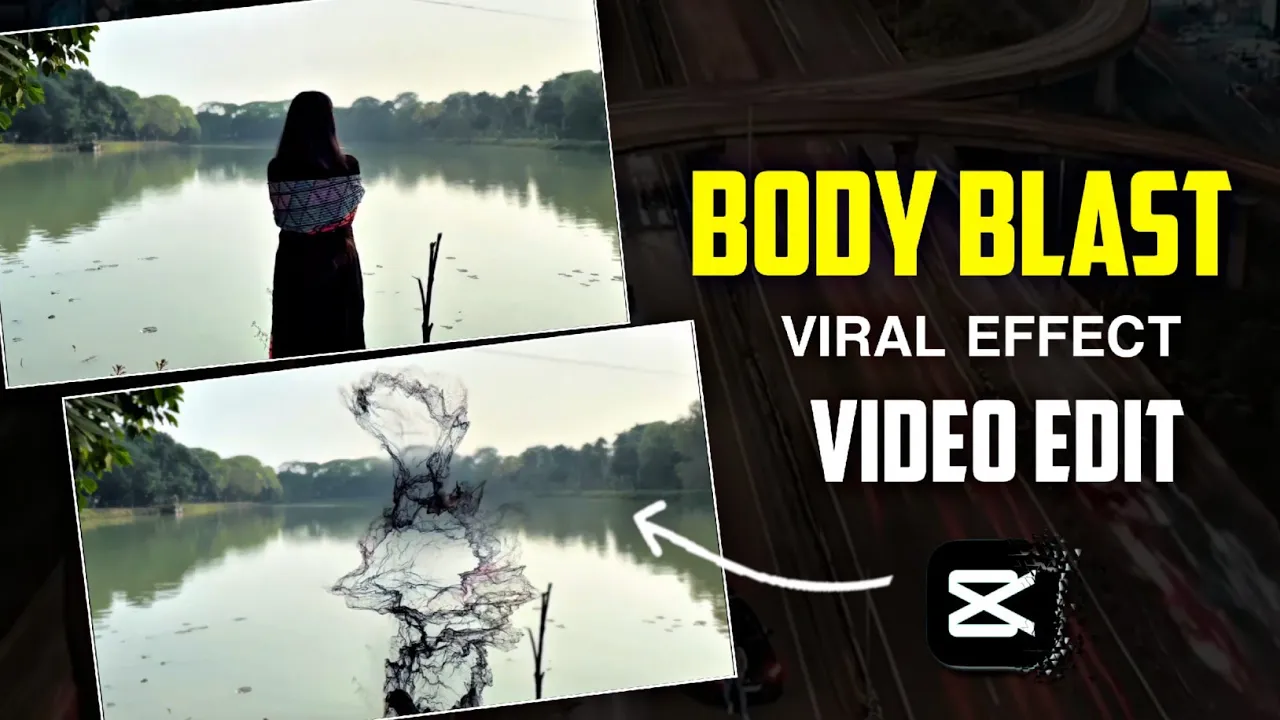
How to Create the Viral Instagram Body Blast Video Using CapCut (Step-by-Step Guide)
Friends, right now this Body Blast style video is going extremely viral on Instagram.
If you also want to edit and create your own video in this trending style, then make sure you like, share, subscribe,
and turn on the bell icon before we start 😉
In this guide, I’ll explain step by step how you can create this viral Body Blast video using only your mobile phone
and the CapCut application. The process is very simple, and even beginners can easily follow it.
Step 1: Record Your Video
First of all, record your own video using your mobile phone. This will be the main clip that we’ll edit later.
Make sure your video is clear and properly framed, as the effects work best on a clean shot.
Step 2: Open CapCut and Create a New Project
Now, connect your VPN (if required) and open the CapCut app.
You’ll see a very simple and clean interface.
- Tap on the “+” (New Project) button
- Select the video clip you want to edit
- Your video will now appear on the timeline
Since the original video usually contains background noise, we’ll remove it first.
Simply mute the original audio, and as you can see, the noise is now completely turned off.
Step 3: Add Music Using Overlay
Now it’s time to add music to your video:
- Tap on Overlay
- Select Add Overlay
- Choose a music video or audio file
- Tap on Extract Audio
The audio will be separated successfully. After that, delete the overlay video and keep only the music.
Now your music track is ready on the timeline.
Step 4: Cut and Sync the Video with Music
Play the video and start cutting it according to the beats of the music.
I’m showing you an example here so you understand how to sync cuts properly.
- Cut the second part of the video as needed
- Remove any black layer that appears at the end
- Adjust the cuts based on the music rhythm
Step 5: Add the Body Blast Effect
Now comes the most important part — the Body Blast effect.
- Select the second part of the video
- Tap on Effects
- Go to Video Effects
- Scroll or use the Search option
- Search for Body Blast
You’ll find multiple Body Blast effects here. Select the one you like and apply it.
You can also adjust the effect settings if you want, but the default settings work perfectly fine.
Make sure the length of the effect matches the length of your video clip.
Step 6: Adjust Music Length
If the music is longer than the video:
- Tap on the music track
- Click on Split
- Delete the extra part
Now your video edit is almost complete.
Step 7: Apply Color Grading and Filters
To make your video look more cinematic and professional, apply color grading:
- Tap on Filters
- Choose a filter according to your video
- You can try filters like Moody Fire or Green Lake
After applying the filter, tap on Adjust to fine-tune brightness, contrast, and colors.
Once done, tap on the tick icon to confirm.
Also, make sure the filter length covers the entire video.
Step 8: Export and Save the Video
Finally, it’s time to save your video:
- Tap on the Export icon at the top
- Your video will be saved to your mobile gallery
And that’s it! Your viral Instagram Body Blast video is ready to upload 🚀
Useful External Resources
I hope you found this tutorial helpful. If you liked the video and the guide,
don’t forget to like, share, and subscribe.
See you in the next video!