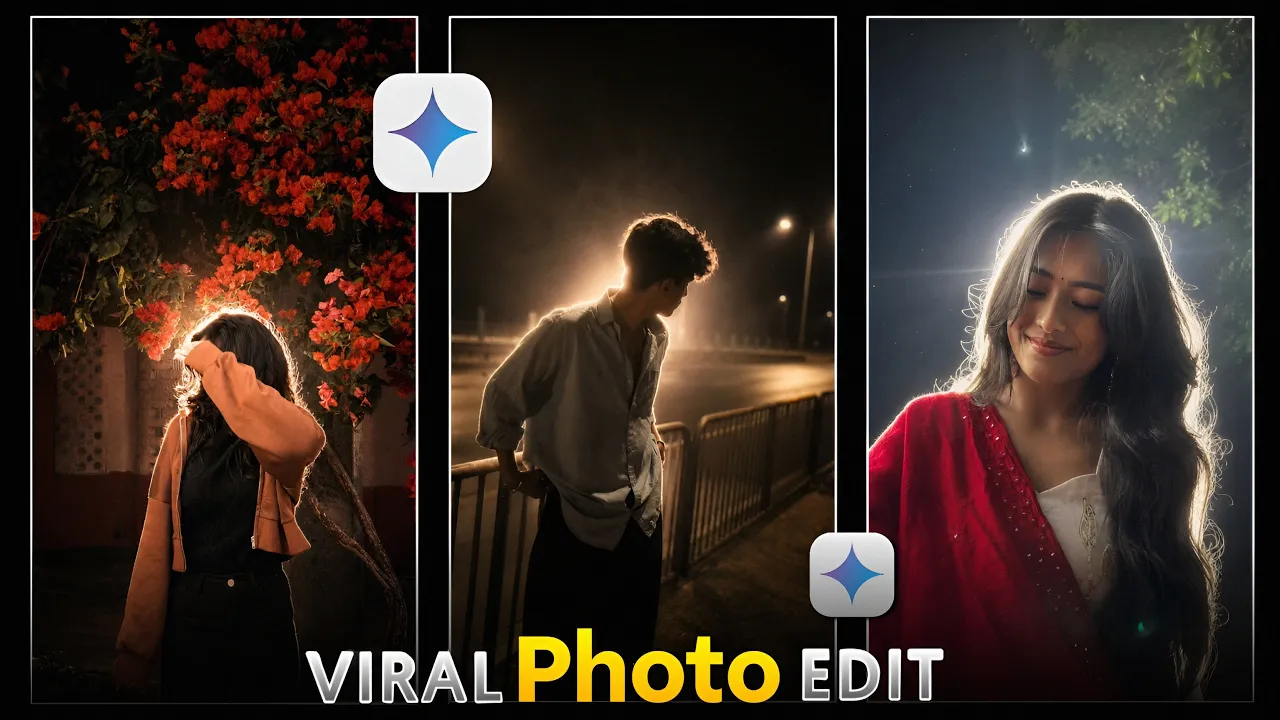
Have you noticed those stunning Night Glow Cinematic Effect photos going viral on Instagram lately? The glowing lights, cinematic atmosphere, and professional editing style make these images stand out instantly.
In this tutorial, I’ll show you how to create the exact same type of viral Night Glow Cinematic photo with just a single click using Google Gemini AI. The best part is that you don’t need any professional editing skills. Simply upload your photo, use the prompt, and let AI do the work.
Let’s get started!
What You’ll Need
Before starting, make sure you have:
- A smartphone
- A clear portrait photo
- The Google Gemini app
- An internet connection
You can download Google Gemini from the official website:
- Google Gemini: https://gemini.google.com
Step 1: Open Google Gemini
First, open the Google Gemini application on your phone.
Once the app opens, you’ll be taken to the main interface. Here you’ll find the Create Image option.
Tap on Create Image to begin generating your AI-powered cinematic photo.
Step 2: Upload Your Photo
After entering the image generation section:
- Scroll down slightly.
- Tap the Plus (+) Icon.
- Select Gallery.
- Choose a photo from your device.
For this example, I uploaded a random portrait image.
Once your photo is uploaded successfully, you’ll see a text box labeled:
“Describe Your Image”
This is where you’ll enter the AI prompt.
Step 3: Add the Night Glow Cinematic Prompt
Now paste your Night Glow Cinematic prompt into the description box.
The prompt tells Gemini exactly how you want your image to look, including:
- Cinematic lighting
- Night atmosphere
- Neon glow effects
- Professional color grading
- High-quality portrait styling
After pasting the prompt, tap the Enter button.
Step 4: Generate the Image
As soon as you tap Enter, Gemini will begin creating your image.
Within a few moments, you’ll see your portrait transformed into a professional Night Glow Cinematic photo.
The result usually includes:
- Beautiful glowing lights
- Enhanced facial details
- Cinematic shadows
- Premium Instagram-style aesthetics
- Viral-ready visual effects
The process is incredibly simple and requires no manual editing.
Step 5: Save Your Generated Photo
Once your image is ready:
- Tap the Three-Dot Menu.
- Select Save Image.
- The photo will automatically download to your device.
That’s it!
Your Night Glow Cinematic image is now saved and ready to upload on Instagram, Facebook, TikTok, or any other social platform.
Creating Night Glow Photos for Boys
The same method works perfectly for boys’ photos as well.
Simply:
- Tap the Plus (+) Icon again.
- Open Gallery.
- Upload a male portrait photo.
- Paste the same cinematic prompt.
- Tap Enter.
Gemini will generate a stylish Night Glow Cinematic portrait with professional lighting effects and enhanced details.
After the image is generated:
- Tap the Three-Dot Menu.
- Select Save Image.
Your AI-generated cinematic photo will be stored on your phone instantly.
Why Night Glow Cinematic Photos Are Going Viral
These AI-generated photos are becoming extremely popular because they:
- Look professionally edited
- Require zero editing skills
- Generate high engagement on Instagram
- Create a premium visual appearance
- Can be made in seconds using AI
Many content creators are using AI tools like:
- Google Gemini
- Adobe Firefly (https://firefly.adobe.com)
- Microsoft Designer (https://designer.microsoft.com)
- Canva AI (https://www.canva.com/ai-image-generator/)
to create eye-catching social media content.
Final Thoughts
Creating viral Night Glow Cinematic Effect photos is now easier than ever thanks to Google Gemini AI. All you need is a good portrait photo, the right prompt, and a few seconds of processing time.
By following the simple steps above, you can transform ordinary photos into stunning cinematic masterpieces that look professionally edited and Instagram-ready.
Try it yourself and create your own viral Night Glow portrait today!